
Language manager
You will find the language management features under:
Admin > Settings > Language Management
Here you will find a list of the available languages in your platform

From this panel it will be possible to:
- Edit existing languagesImport language filesAdd new languages
Edit existing languages
To edit existing language translation keys, click on the higlighted icon in the previous image to get to the language editing page:

In this page you will find a list of all the available translation keys
1. Filter the language keys:
- Module: the area or feature of the platform where the language key is user
- Key: the code placeholder for the language key to be translated
- Plugin: select the language keys created by a specific plugin
- Only untranslated: shows only keys without local translation
2. Search language translations: search any text in all the listed key translations (doesn't search in key names)
3. Edit any translation, just by clicking on the translation text
4. Add a new translation key for all the available languages
Import language files
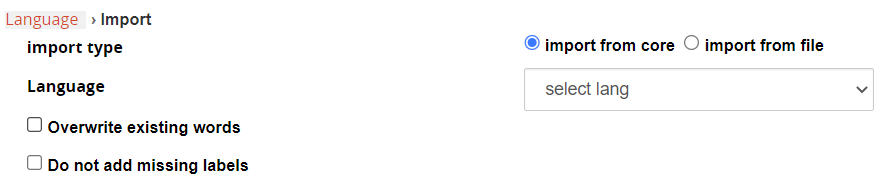
Import Modes:
- Import from core: select from a list of the available languages
- Import from file: import an XML language file exported from another format installation
Options:
- Overwrite existing words: if the language is already installed in the system, it will override all the customizations
- Do not add missing labels: if the language is already installed in the system and some translation key is missing, it will leave it empty
Add a new language
Create an empty new language
